Help and support
Everything you need to host a music bingo night with BeatsBingo Home Edition on iPhone, iPad and Apple TV. Hosting in a pub or at an event with the Mac and iPad app? Go to the venue help.
Your first game
What you need
- An iPhone or iPad on iOS 26 or iPadOS 26 or later, or an Apple TV on tvOS 26 or later, to host.
- Wi-Fi that the host device and everyone's phones share.
- Players with any phone. They play in their browser. There is nothing for them to install.
- Music: an Apple Music subscription on the host device, or your own music files. You can also try the game with the built in demo song titles, which play no sound.
Five steps
- Open the app. The first time, allow Local Network access when asked: the host device runs the game on your Wi-Fi and players' phones connect to it.
- Step 1, Music: choose a playlist, or leave the demo songs.
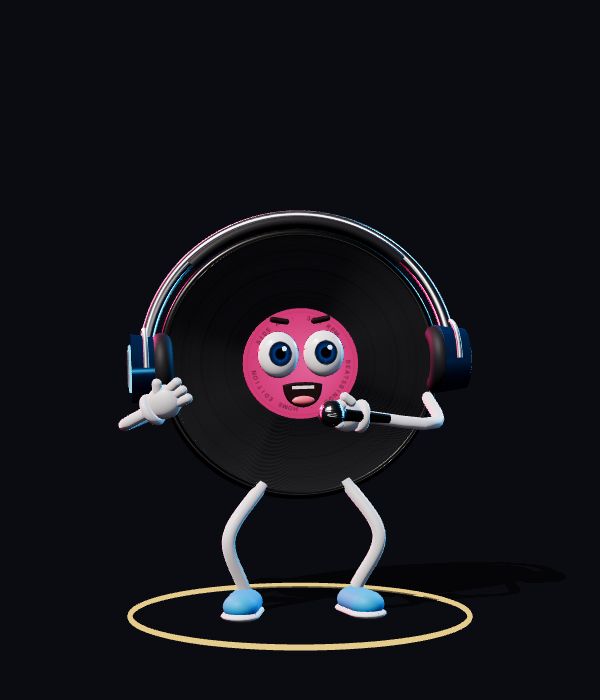
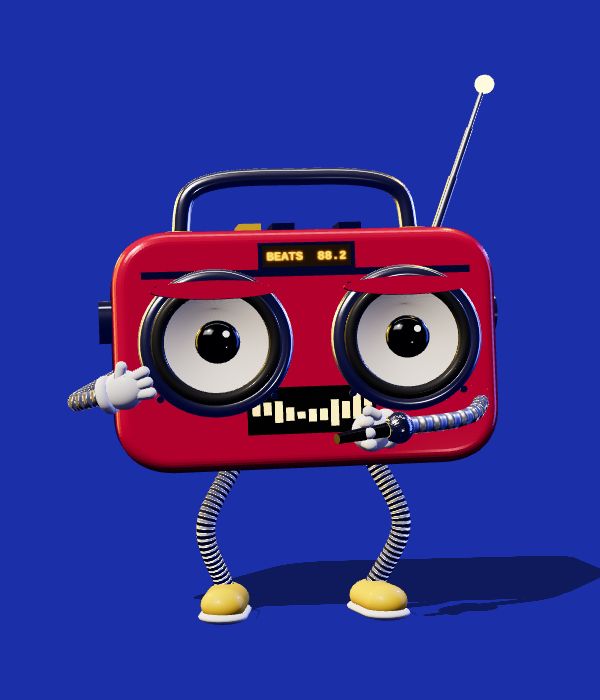
- Step 2, Cards: pick the card size, the free square and the prizes. Step 3: pick your host, Vinny or Bop.
- Tap Start a game. A join code appears. Players point their phone camera at it, type a name and get a card.
- Tap Start the round. From here the host runs the show and you play along on your own card.
Music
Your playlists and Apple Music
Choose one of the playlists in your own Apple Music library, or browse Apple Music's playlists: there are one tap ideas such as 80s Hits, Disney, Motown and Christmas, a list of what is popular now, and a search box. Playing songs from Apple Music uses the Apple Music subscription on the host device.
My files
Choose audio files from the Files app (mp3, m4a, aac, wav, aiff or flac). The song and artist names come from the files' own tags, or from a file name written as Artist - Title. Your own files need no subscription and no internet.
How many songs?
A game needs at least 12 songs and uses up to 50. If your playlist is longer, 50 are picked at random for that game, so the same playlist gives a different game each time.
Explicit songs
Songs that Apple Music marks as explicit are left out unless you turn on Allow explicit songs in Settings. Your own files carry no marking, so they are always included.
Playing
How a round works
Each song plays for about 30 seconds with its title hidden. If you recognise it and it is on your card, tap it. Then the title is revealed and the next song starts. The songs already played stay listed on the host screen and the big screen for anyone who missed one.
Prizes
Choose a single prize (1 line, 2 lines or a full house), or the full game, which plays for a line, then two lines, then the full house. When your card completes the pattern, tap Call BINGO. The app checks it for you.
When someone wins a line
The music and the clock stop for a few seconds so the room can cheer. The host can tap More time to hold it longer, or Carry on to get back to the song, which picks up where it stopped.
Host controls
Pause and resume, skip a song (it is revealed first, so nobody loses out), or add 20 seconds to a song everyone is enjoying. If the host leaves the app, the game pauses and keeps its place.
If a player's phone locks or they switch apps
Their card is kept. When they come back to the page it reconnects by itself with every mark in place.
Playing in a game someone else is hosting
Scan the join code with your phone camera, or tap Join a game in the app.
The big screen
- Host on Apple TV: open the app on Apple TV and choose Host on this TV. Run the game with the remote. Players join from their phones by scanning the code on the TV.
- Apple TV as the big screen: host on your iPhone or iPad, then open the app on Apple TV and choose Use this TV as the big screen. It finds the game on your Wi-Fi and shows the stage.
- AirPlay: send your iPhone or iPad to a TV with AirPlay and the TV shows the stage while your device keeps the controls.
- No TV: tap Play without a TV and the host's own screen becomes the stage.
iPhone Duo and iPad
On iPhone Duo opened flat, the host controls are on one page and your own card on the other. Stood half open, one page becomes the stage. On iPad, upright or on its side, the stage and your card share the screen. On these devices your card is always in view, so there is no switching between the host screen and your card.
Free plan and full access
- Free: up to 3 players (the host's own card is one of them), 3 × 3 cards and 2 games in any 7 days.
- Full access: a one-off purchase that gives 2 days of up to 12 players, 4 × 4 cards and unlimited games. It is not a subscription and never renews.
Buy it in the app: tap the gear button, then Unlock full access. It costs £1.99 in the UK, and the price in your country is shown before you confirm. Full access and the count of free games both follow your Apple Account, so they are the same on your iPhone, iPad and Apple TV.
Restoring a purchase
On another device, or after reinstalling, open Settings in the app and tap Restore purchases.
Refunds
Purchases are sold by Apple, so refunds are handled by Apple at reportaproblem.apple.com.
Troubleshooting
Players cannot join
- Their phone must be on the same Wi-Fi as the host device, not on mobile data.
- If the code will not scan, type the address shown next to it into the phone's browser.
- Check the host allowed Local Network access: on the host device open the Settings app, find BeatsBingo Home, and turn on Local Network.
- Some guest Wi-Fi networks stop devices talking to each other. Use the main home network.
A player is told the game is full
The free plan seats 3 players, counting the host. Unlock full access for up to 12.
There is no sound
- The demo songs are titles only and play nothing. Choose a playlist or your own files.
- For Apple Music, check the host device is signed in with an active Apple Music subscription and is online.
- Check the volume, and the music setting in the app's Settings.
A song would not play
The game moves on by itself. If several fail in a row the game pauses and tells you why, usually the internet connection or the Apple Music account.
Apple TV cannot find the game
Make sure the Apple TV and the host device are on the same Wi-Fi, and that the host has already tapped Start a game.
Contact us
Email [email protected] and tell us which device you are hosting on. Real humans, quick replies.